> ## Documentation Index
> Fetch the complete documentation index at: https://docs.getcargo.ai/llms.txt
> Use this file to discover all available pages before exploring further.
# Querying Cargo data
> Access your Cargo data models directly via SQL
Every data model you create in Cargo — whether an [object model](/reference/models/object-models), an integration model, or a unified model — is stored as a table in your connected data warehouse. You can query these tables directly using SQL, whether from your own BI tools, data pipelines, or within Cargo to create new SQL-based models.
***
## Table naming conventions
Cargo follows specific naming patterns for your data model tables. The format depends on your warehouse scope configuration.
### Database scope
```sql theme={null}
[DATABASE].datasets_[CONNECTOR_SLUG].models_[MODEL_SLUG]
```
**Example:** If your database is `CARGO_DB`, your connector slug is `crm`, and your model slug is `companies`:
```sql theme={null}
SELECT * FROM CARGO_DB.datasets_crm.models_companies
```
### Schema scope
If you configured schema-level scope when setting up your warehouse:
```sql theme={null}
[DATABASE].[SCHEMA].datasets_[CONNECTOR_SLUG]__models_[MODEL_SLUG]
```
Notice the double underscore (`__`) between the connector slug and `models`
when using schema scope.
***
## Query examples
### Basic query
```sql theme={null}
SELECT
company,
website,
funding_amt,
funding_type
FROM CARGO_DB.datasets_file.models_abm_raw
WHERE funding_amt > 1000000
```
### Joining multiple models
Combine data from different Cargo models:
```sql theme={null}
SELECT
a.company,
a.website,
b.enrichment_data,
c.activity_score
FROM CARGO_DB.datasets_crm.models_companies a
LEFT JOIN CARGO_DB.datasets_enrichment.models_company_data b
ON a.domain = b.domain
LEFT JOIN CARGO_DB.datasets_analytics.models_scores c
ON a.company_id = c.company_id
```
### Aggregations
```sql theme={null}
SELECT
company,
website,
SUM(deal_value) as total_pipeline,
COUNT(*) as deal_count
FROM CARGO_DB.datasets_crm.models_deals
WHERE stage != 'Closed Lost'
GROUP BY company, website
HAVING SUM(deal_value) > 10000
```
***
## Creating SQL models
You can create new Cargo data models by writing SQL queries against your existing tables. This is useful for combining data from multiple sources, applying transformations, or creating aggregated views.
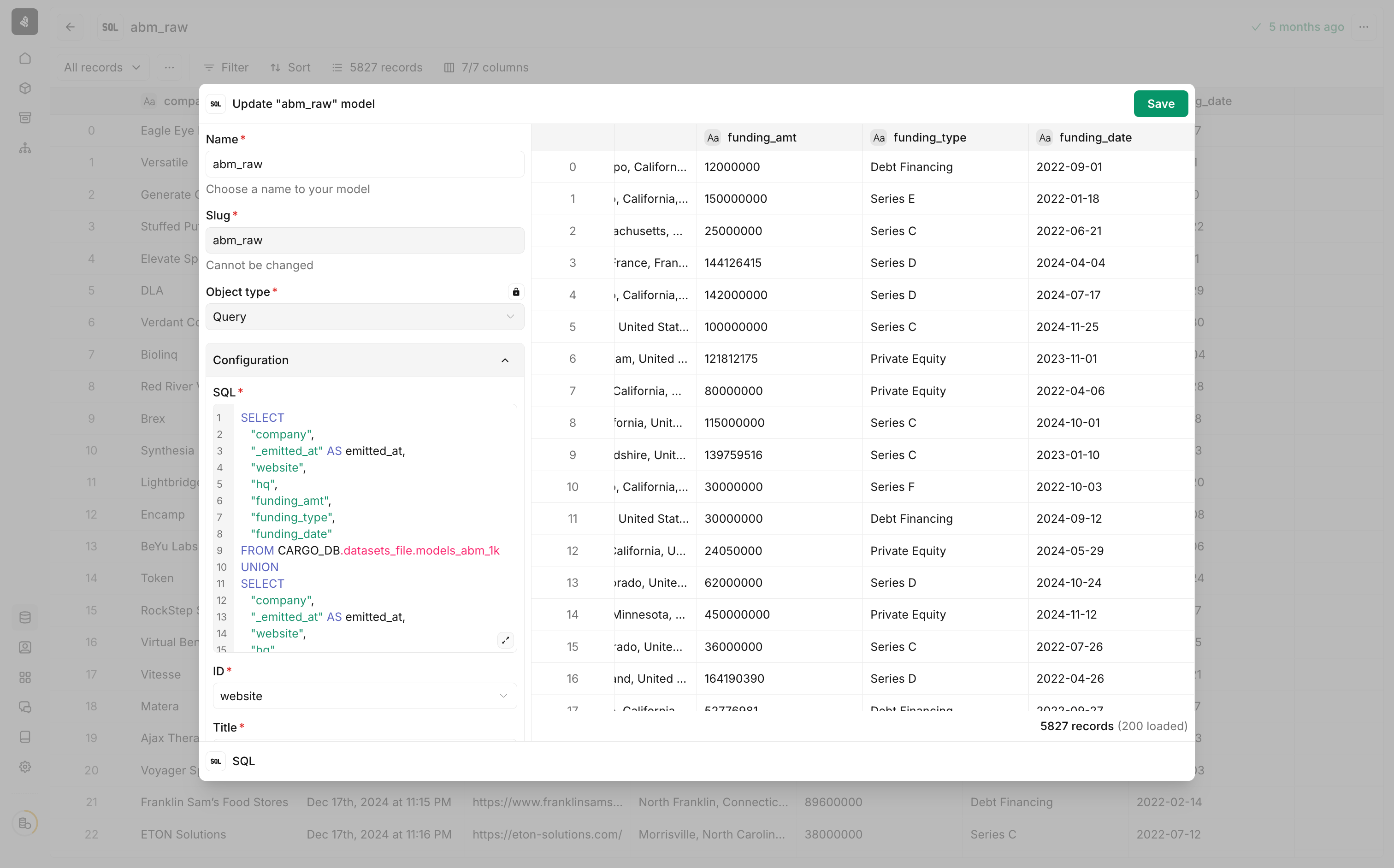 Navigate to your data models and create a new model. Select **SQL** as the object type.
Write a query that selects data from your existing Cargo tables using the naming conventions above.
```sql theme={null}
SELECT
"company",
"_emitted_at" AS emitted_at,
"website",
"hq",
"funding_amt",
"funding_type",
"funding_date"
FROM CARGO_DB.datasets_file.models_abm_lk
```
Do not include `_id`, `_time`, `_title`, or `_segments` columns in your query—these are system columns that Cargo generates automatically. Column names also cannot start with `computed__`, `custom__`, or `metric__`, or contain `___` or `$`.
Map the required columns:
* **ID** — The unique identifier for each record
* **Title** — A human-readable label for records
Preview the query results to verify your data, then save the model.
***
## Next steps
Use model search, record, and custom column actions.
Configure BigQuery as your data warehouse.
Configure Snowflake as your data warehouse.
Navigate to your data models and create a new model. Select **SQL** as the object type.
Write a query that selects data from your existing Cargo tables using the naming conventions above.
```sql theme={null}
SELECT
"company",
"_emitted_at" AS emitted_at,
"website",
"hq",
"funding_amt",
"funding_type",
"funding_date"
FROM CARGO_DB.datasets_file.models_abm_lk
```
Do not include `_id`, `_time`, `_title`, or `_segments` columns in your query—these are system columns that Cargo generates automatically. Column names also cannot start with `computed__`, `custom__`, or `metric__`, or contain `___` or `$`.
Map the required columns:
* **ID** — The unique identifier for each record
* **Title** — A human-readable label for records
Preview the query results to verify your data, then save the model.
***
## Next steps
Use model search, record, and custom column actions.
Configure BigQuery as your data warehouse.
Configure Snowflake as your data warehouse.