

The play editor
The play editor provides a visual canvas for building automation workflows. Each play connects to a data model and executes whenever matching changes are detected. Key concepts:- Trigger defines when the play executes and what data it receives
- Nodes are the individual steps in your play (enrich, branch, write, etc.)
- Actions are the operations each node performs—Cargo offers 120+ actions across logic, AI, integrations, and more
- Connections define how data flows between nodes
- Fallbacks handle errors gracefully when nodes fail
Publishing and enabling
Draft mode
When you create or modify a play, changes are saved as a draft. You can leave and return later without losing progress.Publishing
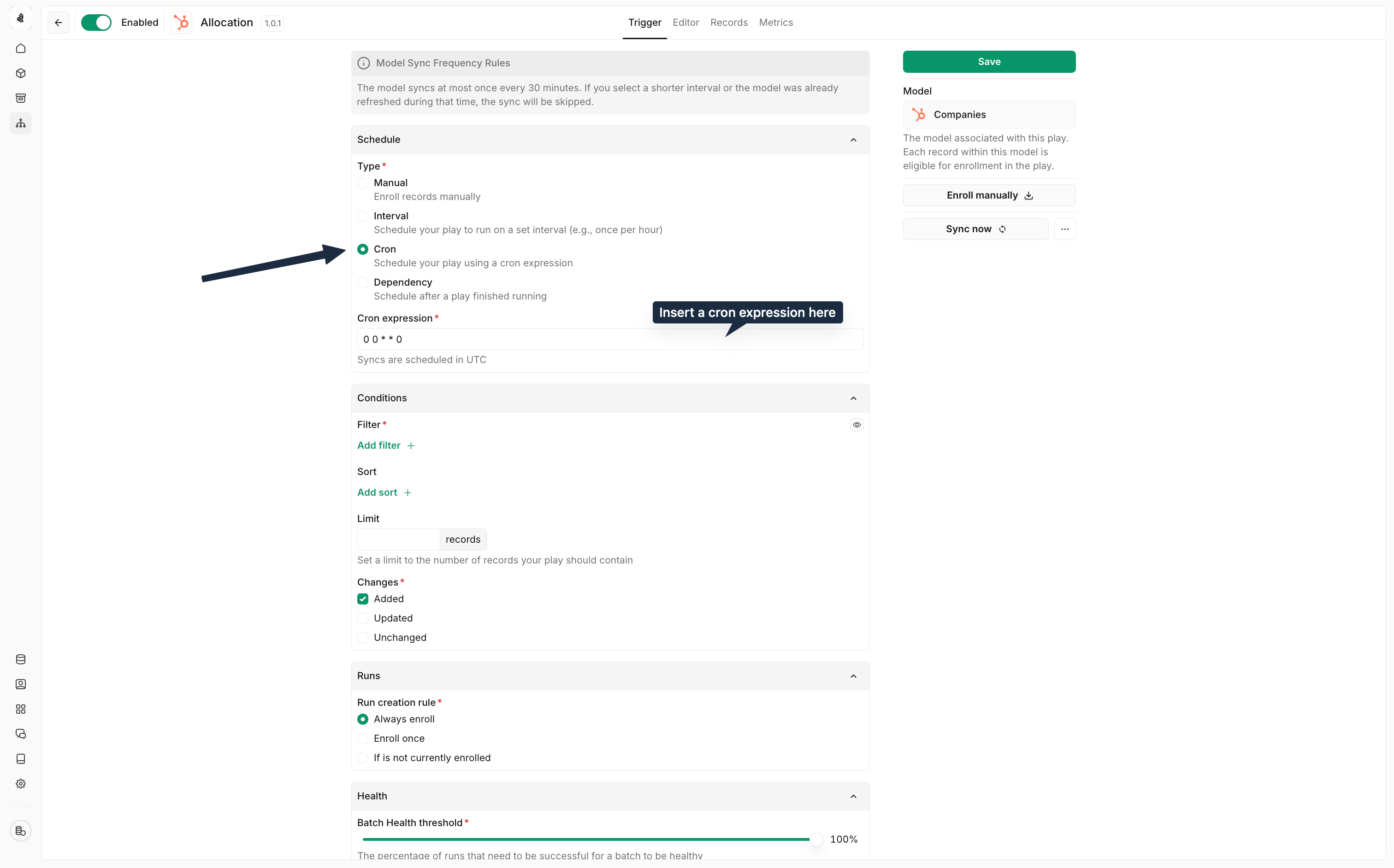
| State | Behavior |
|---|---|
| Draft | Changes are saved but not active—the previous published version continues running |
| Published | The latest version is active and will be used for all new runs |
| Enabled | The play automatically enrolls records when trigger conditions are met |
| Disabled | The play won’t auto-enroll, but you can still manually enroll records |
Running and re-running
Manual enrolment
You can manually enrol records into a play regardless of whether it’s enabled:- Navigate to the Records view in your play
- Click the import button to enrol specific records
- Monitor execution in the runs panel
Re-running failed runs
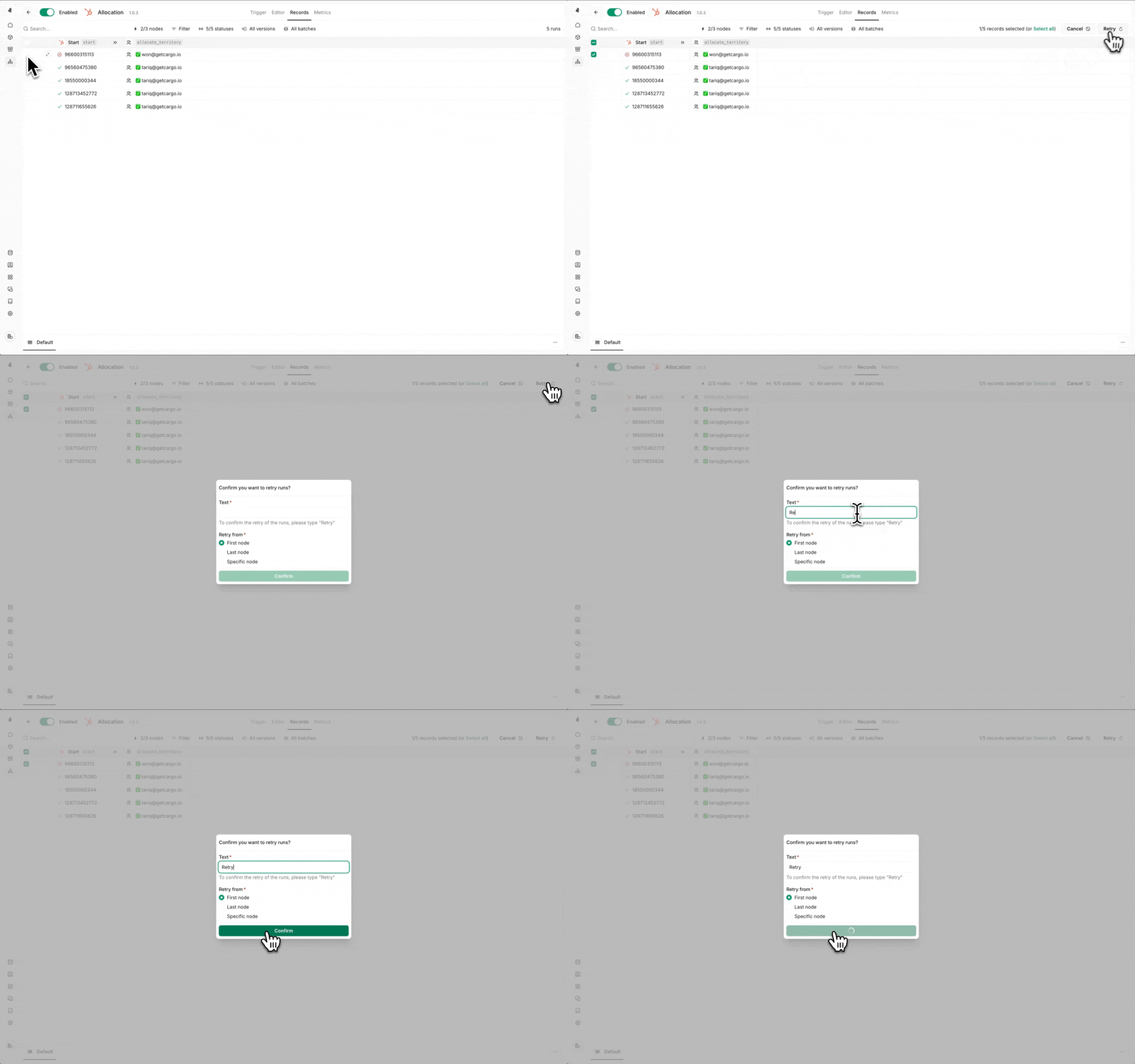
- Navigate to the Records view
- Select the failed runs you want to retry
- Choose your re-run strategy:
| Strategy | Behavior |
|---|---|
| From scratch | Re-run the entire workflow from the beginning |
| From failure | Resume from the failed node, preserving successful steps |
Re-running from the failure point prevents duplicate actions for nodes that
already completed successfully.
Handling failures with fallbacks
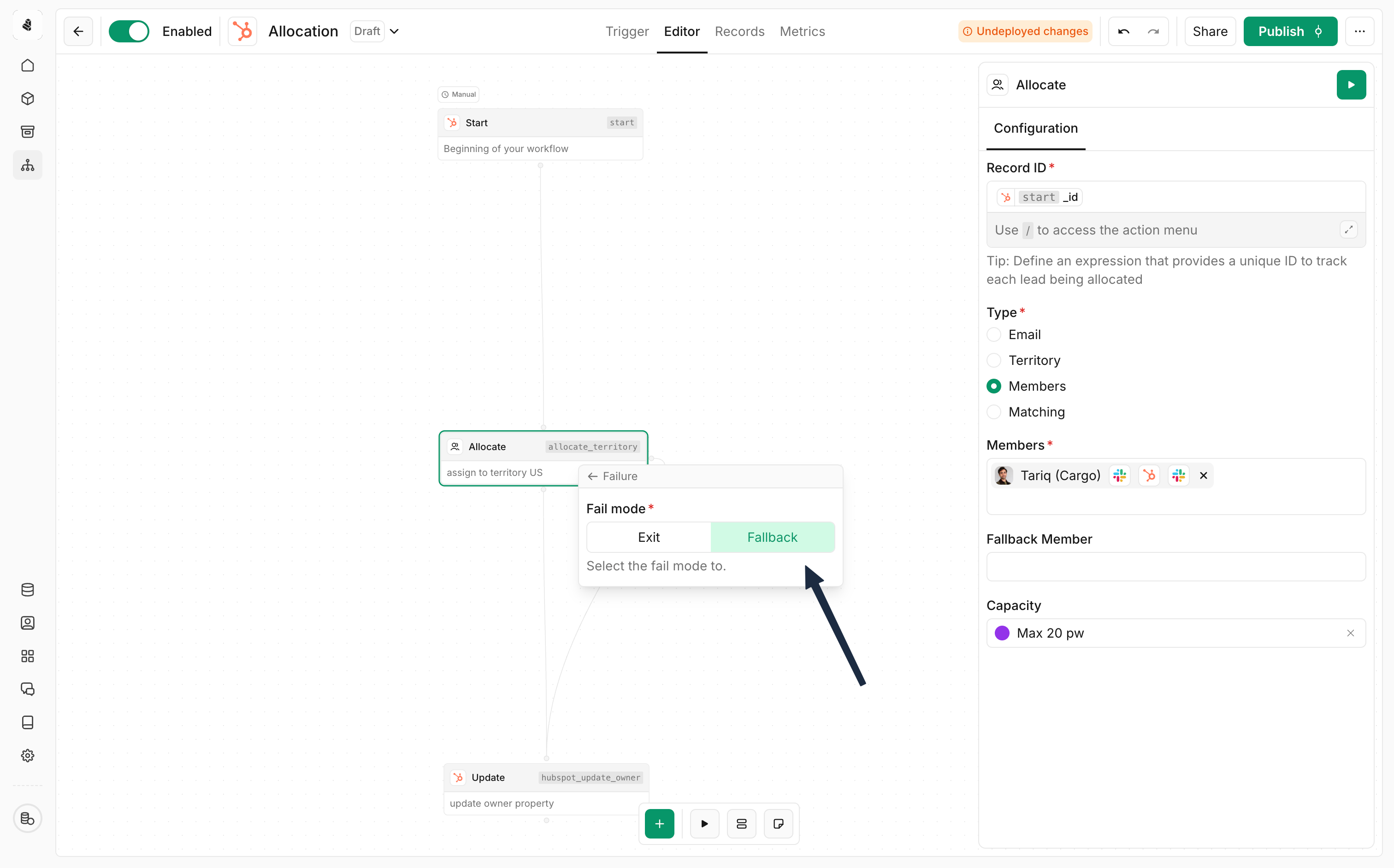
Adding a fallback path
- Right-click on the node you want to add a fallback to
- Select Failure from the context menu
- Choose the fallback option under the fail mode
Common fallback patterns
| Pattern | Use case |
|---|---|
| Notification | Send a Slack message when enrichment fails so a human can investigate |
| Alternative action | Try a different enrichment provider if the primary one fails |
| Default values | Write placeholder data to your CRM to prevent incomplete records |
| Skip and continue | Log the failure and continue with remaining records in the batch |
Monitoring workflow health
Health indicators
The play header displays:- Success rate — Percentage of runs completing without errors
- Recent runs — Quick view of the latest execution results
- Active runs — Number of records currently being processed
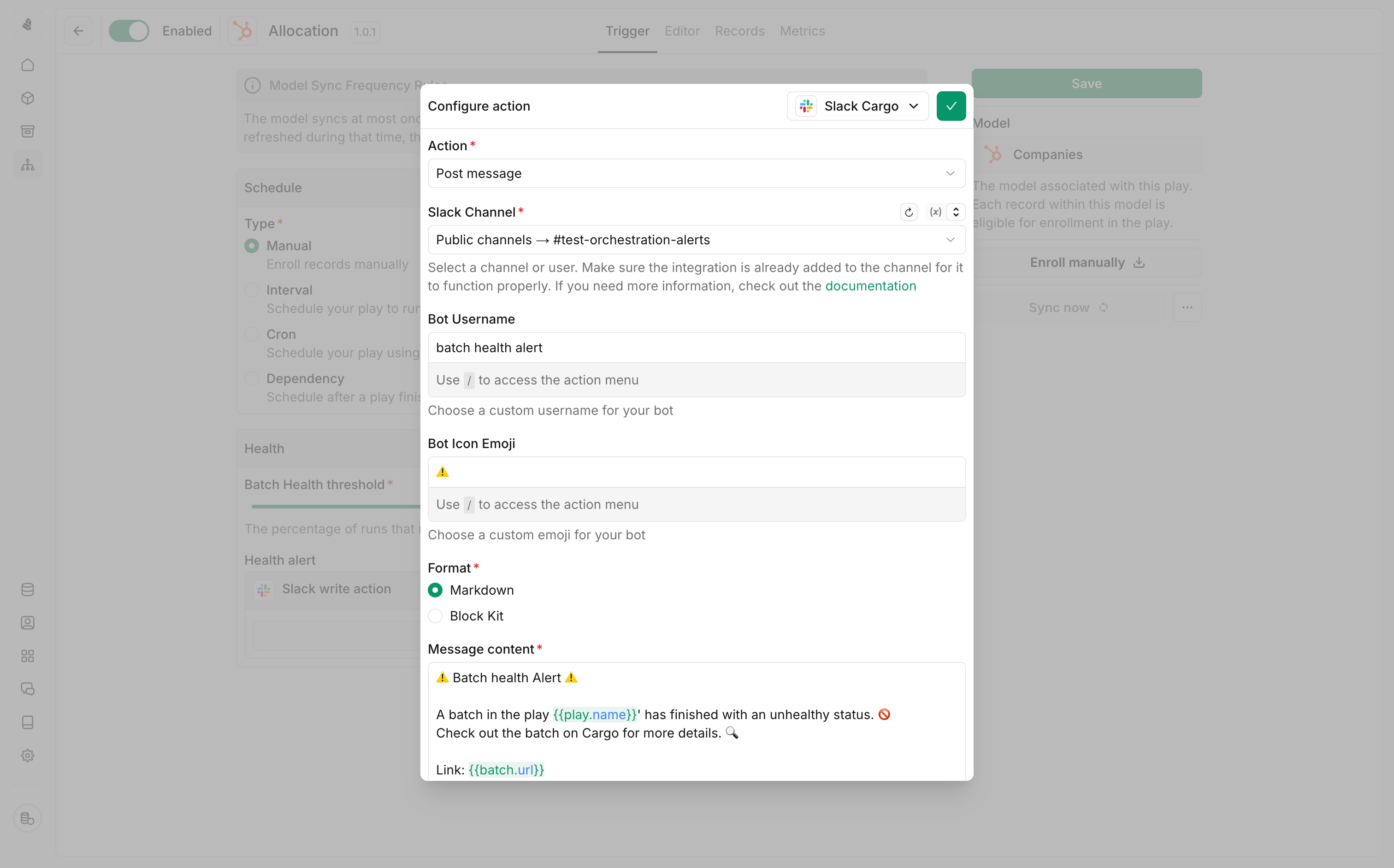
Setting up alerts
Configure notifications to catch issues early:- Open the Sync settings panel
- Set a Batch Health threshold (e.g., 80%)
- Connect a Slack channel for alerts
- You’ll be notified when a batch falls below your threshold
Best practices
Test with manual enrolment first
Test with manual enrolment first
Before enabling automatic triggers, manually enrol a few test records to
validate your workflow end-to-end. This catches issues before they affect
production data.
Add fallbacks for critical nodes
Add fallbacks for critical nodes
Any node that calls an external API can fail. Add fallback paths for
enrichment nodes and CRM writes to handle rate limits, timeouts, and
temporary outages.
Use descriptive node names
Use descriptive node names
Rename nodes from defaults like “Enrich 1” to meaningful names like “Enrich
company from Clearbit”. This makes debugging failed runs much easier.
Set appropriate batch sizes
Set appropriate batch sizes
Large batches process faster but make debugging harder. Start with smaller
batches (10-50 records) until you’re confident in the workflow, then scale
up.
Monitor health proactively
Monitor health proactively
Set up Slack alerts before issues cascade. A 90% success rate might seem
fine, but 10% of your leads not being processed can add up quickly.
Next steps
Configure triggers
Learn about schedules, change detection, and enrolment rules.
Storage actions
Use model search, record, and memory actions in your plays.
Build a tool
Create reusable tools to use within your plays.
Build an agent
Add AI-powered decision making to your workflows.