

Action categories
Cargo organizes actions into two groups: workflow actions for building logic in tools and plays, and connectors for integrating with external systems and AI.Workflow actions
These actions are available in the Tool and Play editors for building automation logic:Logic
Control workflow behavior with branching, looping, filtering, and delays.
Code
Run custom JavaScript or Python code for advanced transformations.
AI
Use LLMs to generate content, extract information, and search documents
semantically.
Sales
Purpose-built actions for lead allocation, scoring, and revenue operations.
Storage
Read, write, and search data in your Cargo data models.
Universal actions
These actions are available everywhere in Cargo—in tools, plays, agents, and via API:Integrations
Connect to CRMs, enrichment providers, communication tools, and external
platforms.
Tools
Call other Cargo tools from within your workflows to compose complex
automations.
Agents
Invoke AI agents to handle complex, multi-step reasoning tasks autonomously.
Where actions are used
| Context | Description |
|---|---|
| Tools | Build reusable workflows by connecting actions visually in the tool editor |
| Plays | Automate data-driven workflows that trigger when data model records change |
| Agents | Give AI the ability to select and execute actions autonomously |
| MCP | Expose your Cargo tools to any MCP-compatible AI system (Claude, Cursor, etc.) |
| API | Call tools and actions programmatically from your own applications |
Retry policy
Some actions can retry automatically when they hit transient failures (rate limits, timeouts, temporary outages). In tools and plays, open the node options menu and select Retry policy. This setting is available for connector actions that use your own credentials; credit-based connectors follow the integration defaults. Retry settings:- Maximum attempts: Total attempts including the first run (set to 1 to disable retries).
- Initial interval: Wait time before the second attempt, in seconds.
- Backoff coefficient: Multiplies the delay after each attempt. Delay =
initial interval * backoff coefficient^(attempt - 1). - Defaults: Leave a field empty to use the integration defaults.
Logic
Logic actions control how your workflow executes—branching based on conditions, looping through arrays, or applying filters.Logic actions are available in Tools and Plays only.
| Action | Purpose | Use when… |
|---|---|---|
| Balance | Distribute records across multiple routes proportionally | You need even workload distribution |
| Branch | Route execution based on a Yes/No condition | You have a single condition to evaluate |
| Delay | Pause execution for a specified time | You need to wait for external processes or rate limits |
| Filter | Stop execution if a condition is false | You want to gate workflow continuation |
| Group | Execute a sub-workflow for each item in an array | You’re processing multiple records in parallel |
| Human Review | Pause for human approval via Slack | You need manual approval before proceeding |
| Split | Randomly route to one of two branches | You’re A/B testing or sampling |
| Switch | Route based on multiple conditions | You have several possible paths |
| Variables | Create and store values for later use | You need to maintain state across nodes |
Code
Code actions let you run custom scripts when built-in actions don’t cover your specific transformation, calculation, or logic requirements.Code actions are available in Tools and Plays only.
| Action | Purpose | Use when… |
|---|---|---|
| JavaScript | Run custom JavaScript | You need custom logic or transformations |
| Python | Run custom Python code | You prefer Python for data transformations |
AI
AI actions leverage large language models to process, generate, and understand content.AI actions are available in Tools and Plays only.
| Action | Description |
|---|---|
| File search | Search through files and documents using semantic understanding. Find relevant content based on meaning, not just keywords. |
| Model ask | Query an LLM with a prompt. Generate text, analyze data, extract information, or make decisions. |
Sales
Sales actions are purpose-built for revenue operations, replicating complex routing and scoring logic.Sales actions are available in Tools and Plays only.
| Action | Description |
|---|---|
| Allocate | Distribute leads to team members based on rules. Supports round-robin, territory-based, and capacity-weighted distribution. |
| Scoring | Create scoring models to evaluate records. Determine lead priority and potential value based on business rules. |
Storage
Storage actions interact with data models in your Cargo workspace, enabling data persistence and retrieval.Storage actions are available in Tools and Plays only.
| Action | Description |
|---|---|
| Memory | Key/value store for temporary data during a workflow run |
| Model search | Query your data models with filters and conditions |
| Model insert | Add new records to an object model |
| Model update | Update records in an object model that match a column / value |
| Model upsert | Update matching records, or insert a new one if none match |
| Model remove | Delete records from an object model that match a column / value |
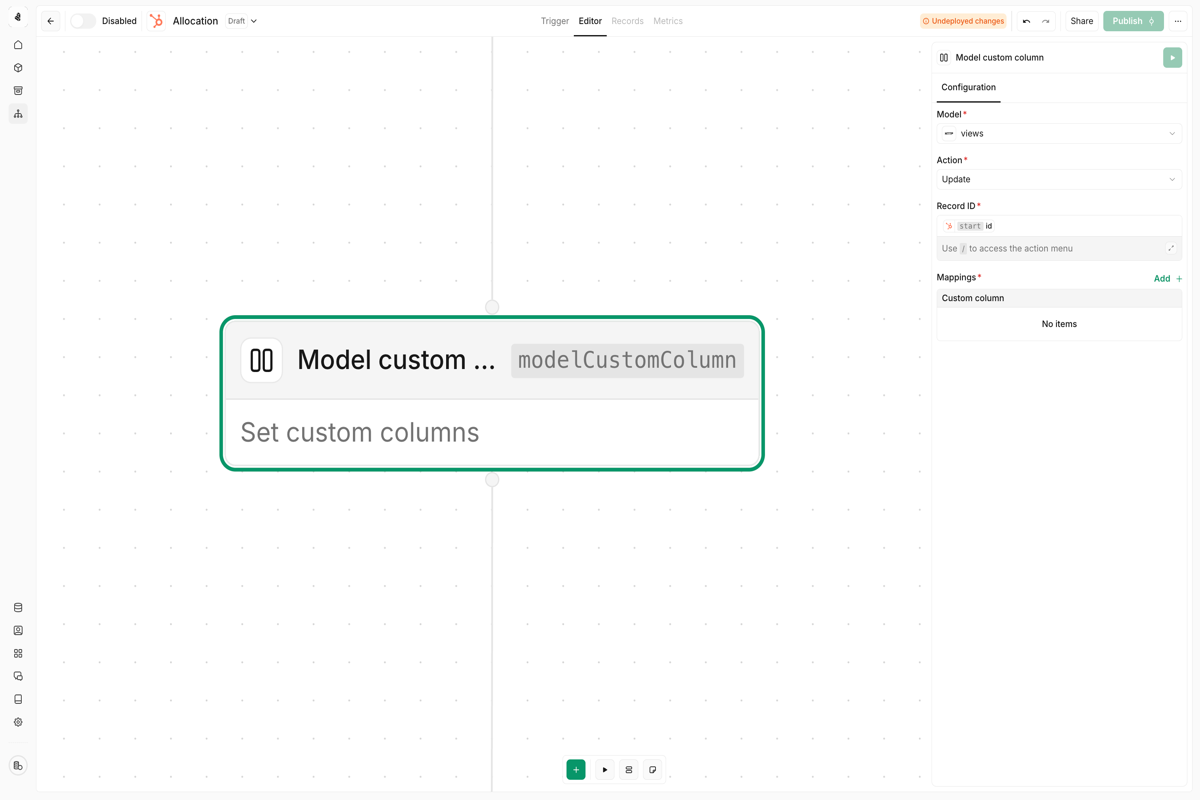
| Model custom column | Set custom column values on any existing record |
| Model record | Insert records in batch into HTTP-loaded integration models |
Memory
The Memory action provides a key/value store for persisting data across nodes. Use it to save values early in your workflow and retrieve them later—without passing data through every intermediate node. Scope options:| Scope | Behavior |
|---|---|
| Workspace | Data is shared across all plays in your workspace |
| Play | Data is isolated to the current play |
| Action | Description |
|---|---|
| Get | Retrieve a value by its key |
| Set | Store a value at a key (overwrites existing) |
| Get or Set | Return existing value, or set a default if none exists |
| Increment | Add to a numeric value (useful for counters) |
| Decrement | Subtract from a numeric value |
| Remove | Delete a key and its value |
| Property | Description |
|---|---|
| Scope | Choose between Workspace (shared) or Play (isolated). |
| Key | A unique identifier for the stored value. Use descriptive names like original_company_name or enrichment_result. Supports expressions. |
| Value | (Set/Get or Set only) The value to store. Can be any data type—strings, numbers, objects, or arrays. Supports expressions. |
- Preserve original data — Save input values before transformations so you can reference them later
- Build counters — Use Increment to track how many times a play has run or count leads processed
- Cache enrichment results — Store API responses to avoid duplicate calls within the same workflow
- Share state across plays — Use Workspace scope to share data between different plays
- Implement rate limiting — Track request counts with Increment/Decrement
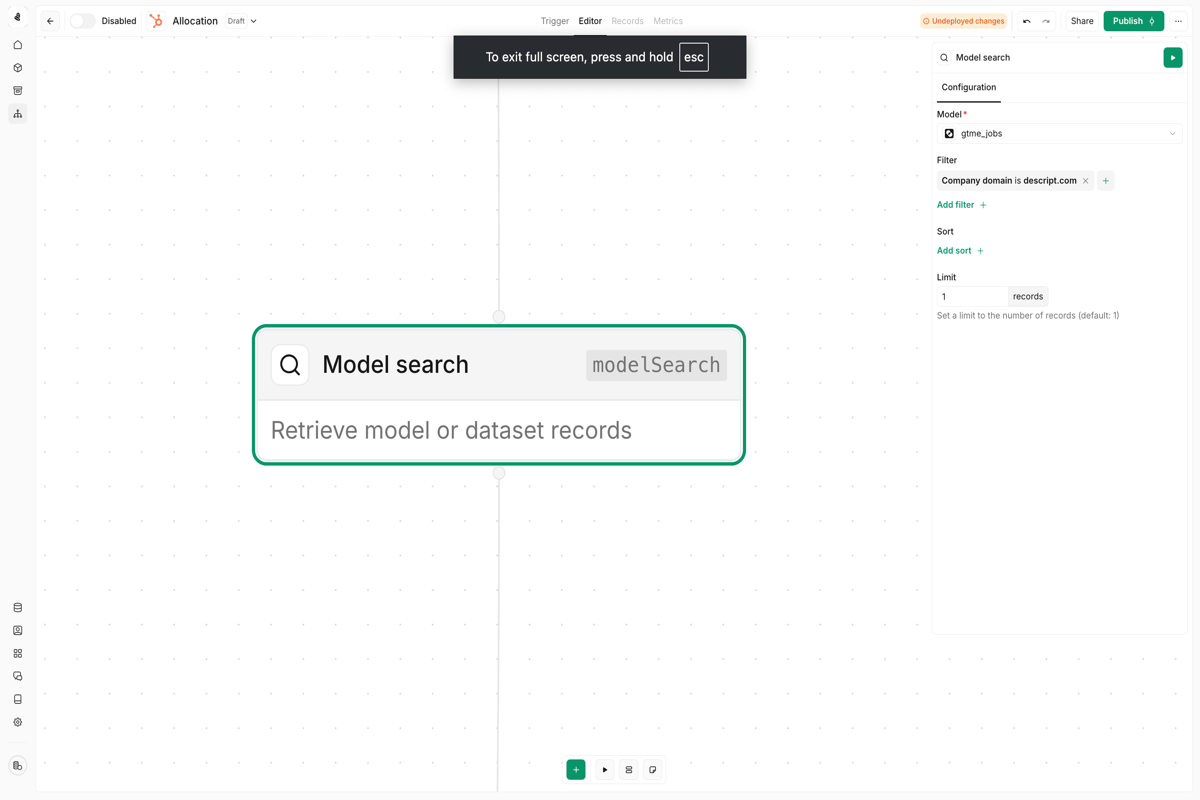
Model Search
| Use case | Example |
|---|---|
| Find related records | Look up all contacts at a company when a deal is created |
| Check for duplicates | Search for existing leads before creating new ones |
| Aggregate data | Retrieve all recent activities for a given account |
| Cross-reference | Match records between different data sources |
| Property | Description |
|---|---|
| Model | The data model to search (e.g., Contacts, Companies, Deals) |
| Filters | Conditions that records must match |
| Limit | Maximum number of records to return |
| Sort | Order results by a specific field |
Model Record
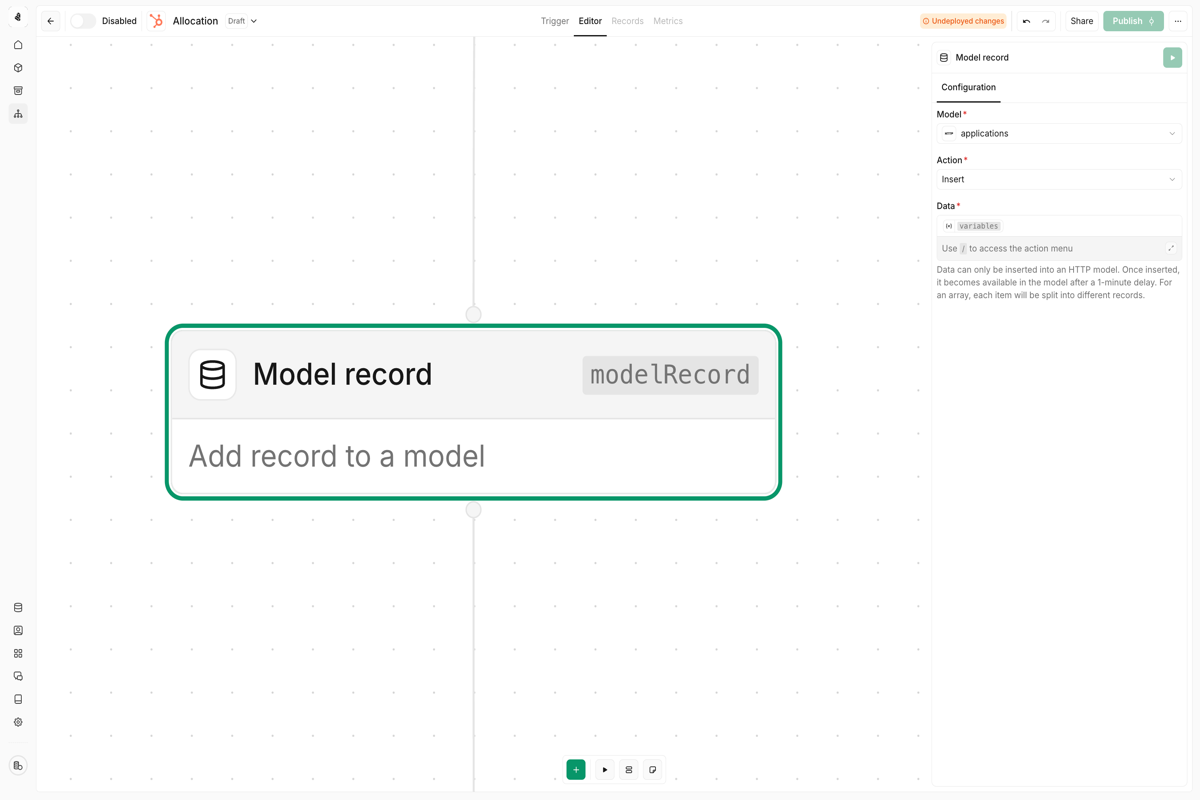
| Model type | Support |
|---|---|
| HTTP models | ✅ Full support for creating records |
| All others | ❌ Not supported |
Model Custom Column
- Lead scoring values calculated by your workflows
- Enrichment timestamps for tracking data freshness
- Processing flags like
needs_revieworoutreach_sent - Aggregated metrics from other data sources
| Property | Description |
|---|---|
| Model | The data model to extend with a custom column |
| Record ID | The primary identifier of the record to update |
| Column name | Name for the custom column (creates it if it doesn’t exist) |
| Value | The data to write to this column |
| Scenario | How to get the ID |
|---|---|
| Same data model as play trigger | Use {{nodes.start._id}} |
| Different data model | Use a Model Search action to find the record, then reference its ID |
| Known external ID | Use the external system’s ID (e.g., HubSpot contact ID) |
If you’re updating records in the same data model that triggered your play,
{{nodes.start._id}} is the simplest approach. For cross-data-model updates, always use a Model Search action first to locate the target record.Storage best practices
Use Model Search to validate before writing
Use Model Search to validate before writing
Before creating or updating records, search for existing entries to prevent
duplicates. This is especially important when processing data from multiple
sources.
Store enrichment metadata in custom columns
Store enrichment metadata in custom columns
Track when records were last enriched, which providers were used, and
whether the enrichment succeeded. This helps you avoid re-processing records
unnecessarily.
Scope memory appropriately
Scope memory appropriately
Use play-scoped memory for play-specific state (like deduplication within a
run) and workspace-scoped memory for cross-play coordination (like global
rate limiting).
Handle empty search results
Handle empty search results
Model Search actions can return zero results. Add a Branch action to check
for empty results and handle them gracefully—either skip processing or
create a new record.
Integrations
Integration actions connect Cargo to external platforms. Each integration provides a set of actions specific to that platform.Common actions
| Action | Description |
|---|---|
| Insert | Create new records in the connected system |
| Find | Retrieve a specific record by ID |
| Match | Check if a record exists based on criteria |
| Search | Find multiple records based on filters |
| Update | Modify existing records |
| Upsert | Insert or update based on matching criteria |
| Delete | Remove records from the connected system |
| Associate | Link two records together (e.g., contact to company) |
Tools
Call other Cargo tools from within your workflows. This lets you compose complex automations from smaller, reusable building blocks. Use cases:- Modular design — Build small, focused tools and combine them into larger workflows
- Reuse logic — Share common operations (like enrichment or CRM writes) across multiple plays
- Abstraction — Hide complexity behind a simple tool interface
Agents
Invoke AI agents from within your workflows. Agents can handle complex, multi-step tasks that require reasoning and decision-making. Use cases:- Research tasks — Have an agent gather and synthesize information
- Dynamic decisions — Let the agent choose the best action based on context
- Complex workflows — Delegate multi-step processes to an autonomous agent
Learn more about agents
Understand how to build and configure AI agents.
Browsing actions
Cargo offers 120+ actions across all categories. To explore them:- Open the Tool or Play editor
- Click the + button to open the node picker
- Browse by category or search for specific capabilities
- Click any action to see its configuration options and documentation
Next steps
Using actions
Learn how to leverage actions across tools, plays, agents, and APIs.
Build a tool
Create your first workflow using the visual tool editor.
Build a play
Automate data-driven workflows triggered by data model changes.
Build an agent
Give AI the power to select and execute actions autonomously.