

Once you’ve built and published a tool, there are several ways to execute it. Choose the method that best fits your use case.Documentation Index
Fetch the complete documentation index at: https://docs.getcargo.ai/llms.txt
Use this file to discover all available pages before exploring further.
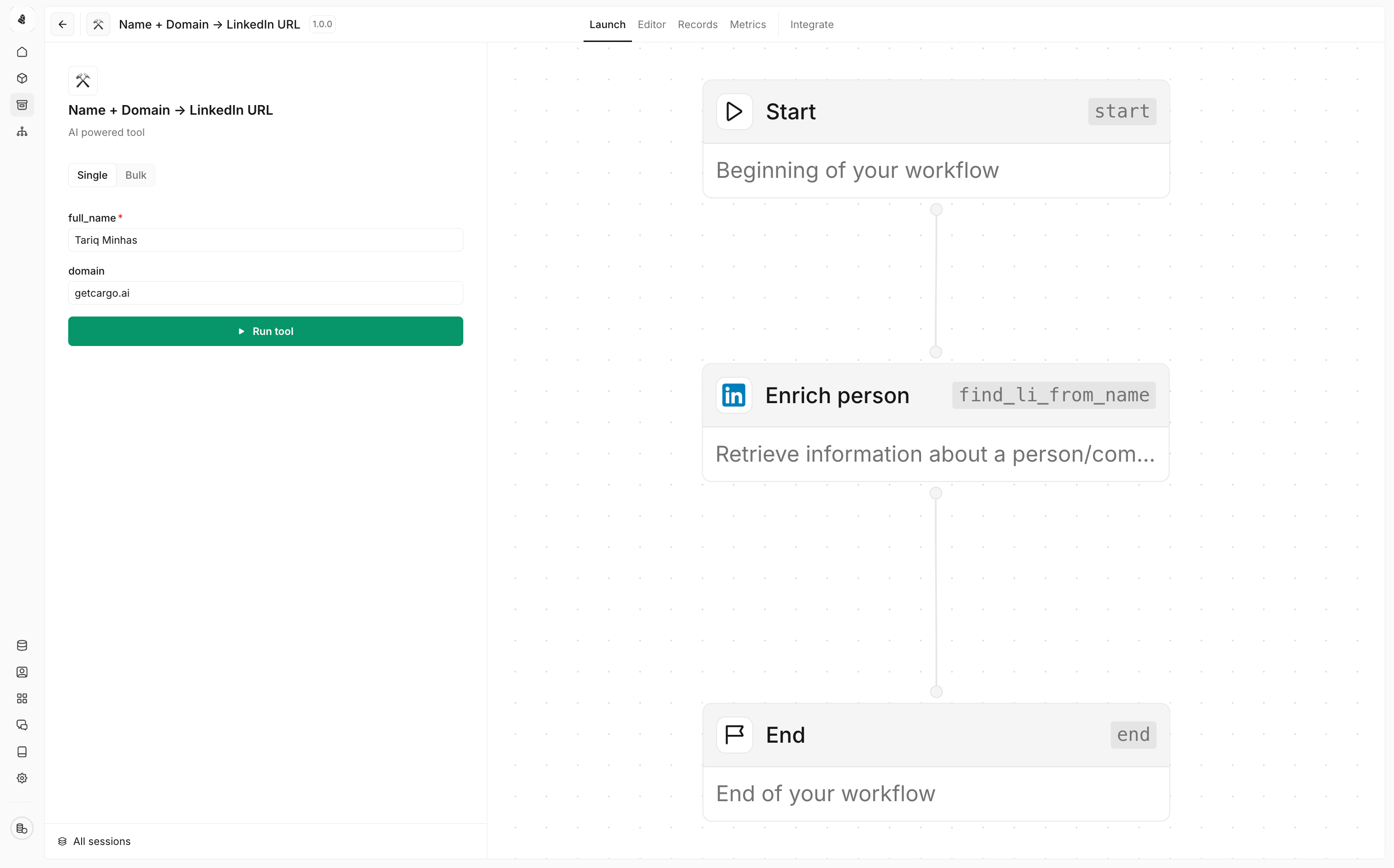
Trigger tab
The most direct way to trigger a tool is through the Trigger tab in the Cargo interface.Single run
Execute a tool once with specific parameters:- Navigate to your tool in the Cargo workspace
- Click on the Trigger tab
- Select Single mode
- Enter the required input parameters
- Click Run tool to execute immediately
Bulk run
Process multiple records at once:- Navigate to your tool and select the Trigger tab
- Choose Bulk mode
- Upload a CSV file containing multiple input records
- Map the CSV columns to your tool’s input fields
- Click Continue to process the entire batch
Through a play
Integrate tools into automated workflows by adding them as actions in a play.- Create or edit a play
- Add your tool as a node in the play
- Map inputs from previous play nodes or enrolled data
- Configure what happens with the tool’s output
Learn more about plays
See how to build plays that orchestrate multiple tools together.
Through an agent
AI agents can autonomously decide when and how to use your tools.- Open your agent’s configuration
- Add your tool to the agent’s available tools
- The agent will automatically trigger the tool when relevant to the conversation
Configure agent tools
Learn how to give agents access to your tools.
Through an MCP server
Model Context Protocol (MCP) allows external AI systems to discover and use your tools.- Enable MCP server in your Cargo workspace settings
- Configure which tools are exposed via MCP
- Connect your MCP client (Claude Desktop, VS Code, etc.)
- Your tools appear as available actions in the external system
Through API calls
Execute tools programmatically via the REST API for maximum flexibility and integration options.Getting your API credentials
- Navigate to Settings → API in your Cargo workspace
- Generate or copy your API token
- Find your tool’s ID in the tool editor URL or settings
Execute endpoint
Execute a tool synchronously. If execution exceeds 5 minutes, it will time out.Example request
Example response
Batch execution
For processing multiple records or long-running operations, use the batch API.Create a batch
webhookUrl field is optional. If provided, results will be sent to your webhook when the batch completes.
The webhookSecret field is optional. When provided, Cargo signs every delivery with an HMAC-SHA256 signature and includes it in the X-Cargo-Signature header (sha256=<hex>). Use this to verify that requests genuinely come from Cargo:
Batch creation response
Retrieve batch results
Poll for results using the batch UUID:Batch results response
Cancel a batch
Cancel an ongoing batch execution:Choosing the right trigger method
| Method | Best for | Automation level |
|---|---|---|
| Trigger tab | Testing, ad-hoc execution, bulk imports | Manual |
| Plays | Scheduled workflows, multi-step automation | Fully automated |
| Agents | Context-aware, intelligent automation | AI-driven |
| MCP server | External AI system integration | AI-driven |
| API | Custom applications, programmatic access | Fully automated |